
Convert PNG images into high-quality JPG instantly.
PNG to JPG Converter – Fast, Free & High-Quality Image Conversion
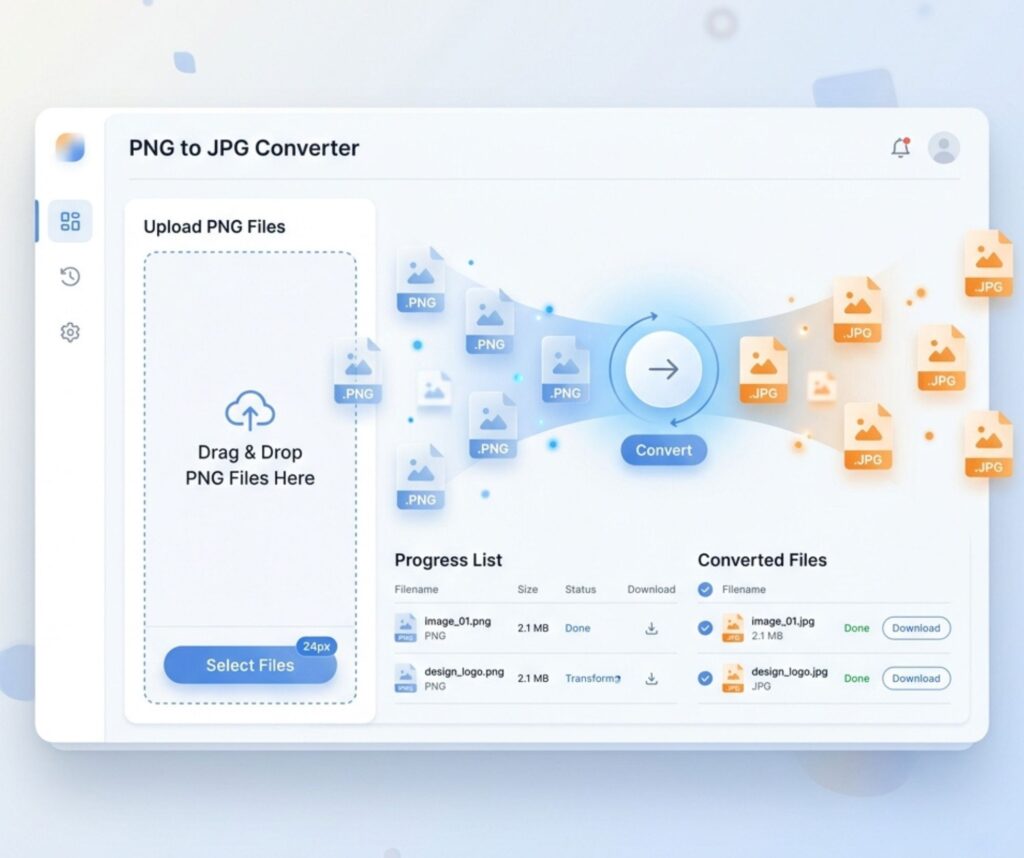
PNG to JPG conversion has become essential for faster websites, smoother sharing, and better storage management. Large PNG files often slow loading speeds and consume extra space, especially on mobile devices and blogs. A reliable PNG to JPG converter helps transform heavy images into lightweight JPG files without making them look blurry. Many users now prefer to convert PNG to JPG online because the process is simple, quick, and works on any device.
A modern free image converter also improves image performance for websites, emails, and social media. Whether you are a designer, blogger, student, or business owner, using a high quality JPG converter can help you optimize visuals efficiently while maintaining excellent image clarity and faster digital performance.
PNG to JPG – Complete Guide for Fast and High-Quality Image Conversion
A modern online PNG converter helps users transform heavy image files into smaller JPG images without technical expertise. JPG compression removes unnecessary image data while keeping visuals attractive. This process feels like packing a suitcase neatly instead of throwing everything inside randomly. Smaller files improve website speed, email sharing, and device storage.
Many creators now rely on a high quality JPG converter because fast-loading images influence search rankings and user engagement. Google values page speed heavily. Therefore, optimized images often contribute to better SEO visibility. Businesses, bloggers, photographers, and students all use image conversion daily to streamline digital workflows.
| Feature | PNG | JPG |
| File Size | Larger | Smaller |
| Transparency | Supported | Not Supported |
| Best Use | Graphics | Photos |
| Loading Speed | Slower | Faster |
| Compression | Lossless | Lossy |
What Is PNG Format and Why Do People Convert It to JPG?
PNG stands for Portable Network Graphics. This format preserves detailed visuals and transparent backgrounds. Designers often prefer PNG because text and logos appear crisp. However, PNG files usually become large. Large files can clog websites like leaves blocking a drainpipe during heavy rain. That is why users often seek an image file converter.
People commonly use a PNG to JPEG converter to reduce storage pressure and improve upload speed. Smaller JPG images work better for blogs, ecommerce stores, and mobile sharing. A travel blogger uploading hundreds of photos each week can save enormous storage space through smart conversion practices.
Key Differences Between PNG and JPG Image Formats
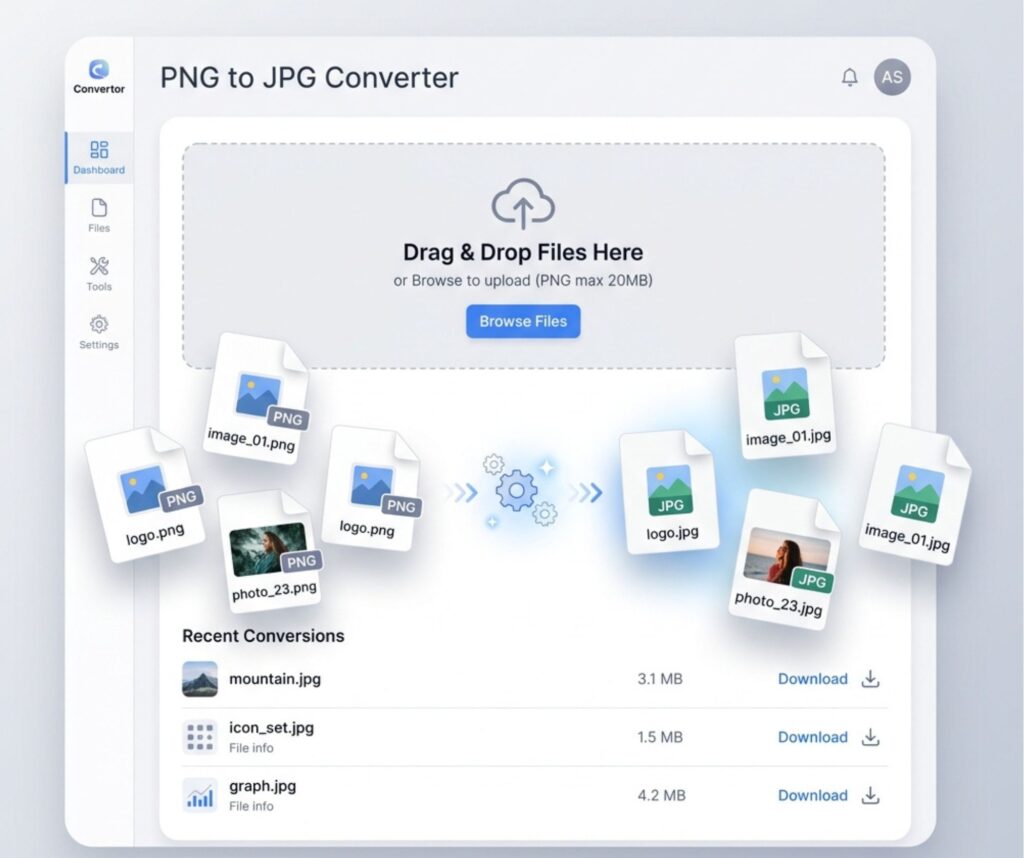
PNG and JPG serve different purposes. PNG focuses on image clarity and transparency. JPG focuses on efficient compression. Think of PNG as a luxury SUV with extra features while JPG behaves like a fuel-efficient city car. Each format performs differently depending on the situation.
Many businesses perform bulk PNG to JPG conversion because JPG images improve website responsiveness. JPG files also support easier social media sharing. However, users should understand that JPG compression slightly reduces image precision. Choosing the right format depends on your project goals and visual requirements.
“Fast websites create better user experiences and stronger search visibility.”
Benefits of Converting PNG to JPG for Web and Daily Use
Website owners frequently compress JPG image files because smaller visuals improve loading speed dramatically. Slow websites frustrate users quickly. Studies show visitors often abandon pages that take longer than three seconds to load. Optimized JPG files reduce bounce rates and support stronger engagement.
A converted JPG image also works better for daily communication. Sending vacation photos through email becomes easier when file sizes shrink significantly. Students uploading assignments and businesses sharing presentations benefit from efficient image management. Many users now rely on a transparent PNG to JPG workflow for rapid online publishing.
| Benefit | Impact |
| Smaller Files | Faster Uploads |
| Reduced Storage | More Space |
| Better SEO | Improved Rankings |
| Faster Loading | Better User Experience |
How to Convert PNG to JPG Online Step by Step
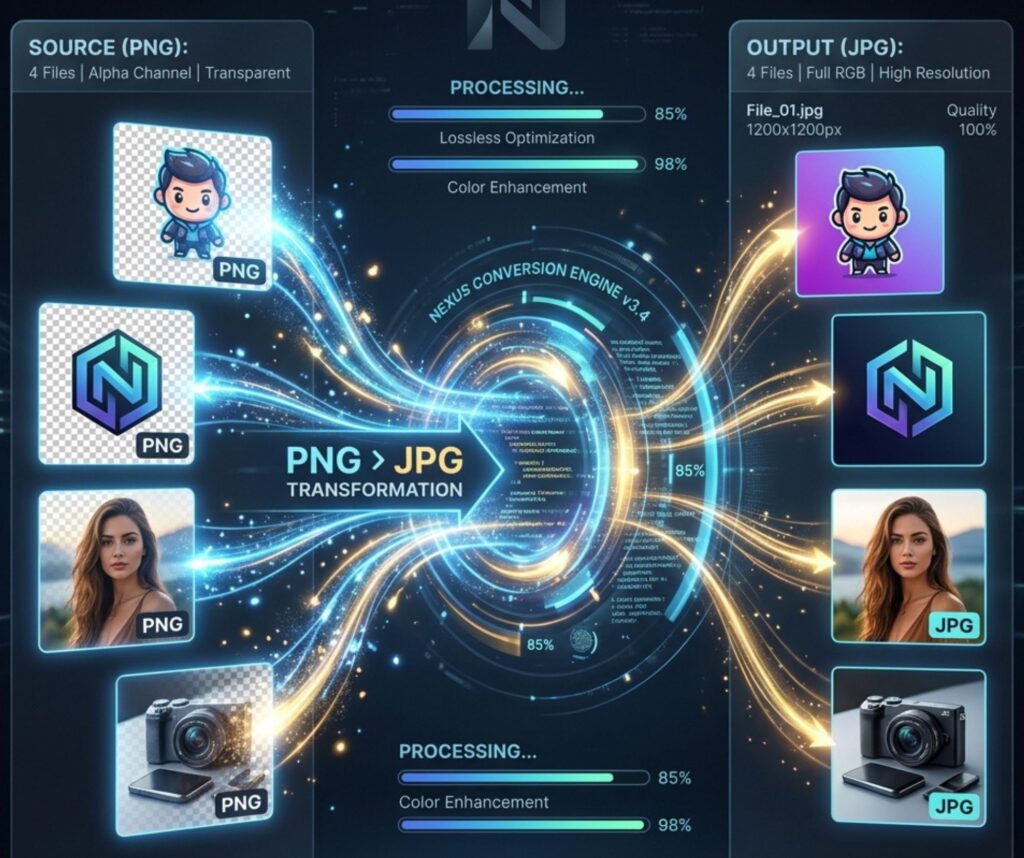
Using a fast image conversion tool feels incredibly simple today. Most platforms require users to upload an image, select JPG output, and click convert. Within moments, the optimized file becomes available for download. Even beginners can complete the process without confusion.
A good converter also allows users to convert image format settings while controlling compression quality. Choosing medium or high quality settings usually preserves strong visual appearance. Many platforms additionally support drag-and-drop uploads which accelerate workflow efficiency for photographers and designers.
Best PNG to JPG Converter Tools You Can Use
Modern users expect a reliable image optimizer that delivers speed, security, and quality simultaneously. Browser-based tools dominate the market because they eliminate software installation. Cloud-based systems now process large image batches quickly while maintaining convenience across devices.
The ideal JPG file converter should support bulk uploads, privacy protection, and high-resolution output. Some tools also include resizing, cropping, and compression options. Businesses handling thousands of product images often depend on advanced automation features for smoother operations.
| Tool Feature | Why It Matters |
| Batch Uploads | Saves Time |
| Secure Processing | Protects Privacy |
| HD Output | Maintains Quality |
| Browser Support | Easy Access |
How to Convert PNG to JPG Without Losing Image Quality
Many users fear losing clarity during conversion. Fortunately, modern systems help users reduce image file size while preserving visual sharpness. Advanced compression algorithms now balance quality and efficiency surprisingly well. Selecting higher quality settings often prevents blurry results.
Professional photographers commonly use an HD JPG converter to maintain color balance and detail accuracy. Avoid excessive compression because aggressive settings can create pixelation. Smart optimization resembles trimming tree branches carefully instead of cutting the entire tree down recklessly.
PNG to JPG for Mobile Users (Android and iPhone Guide)
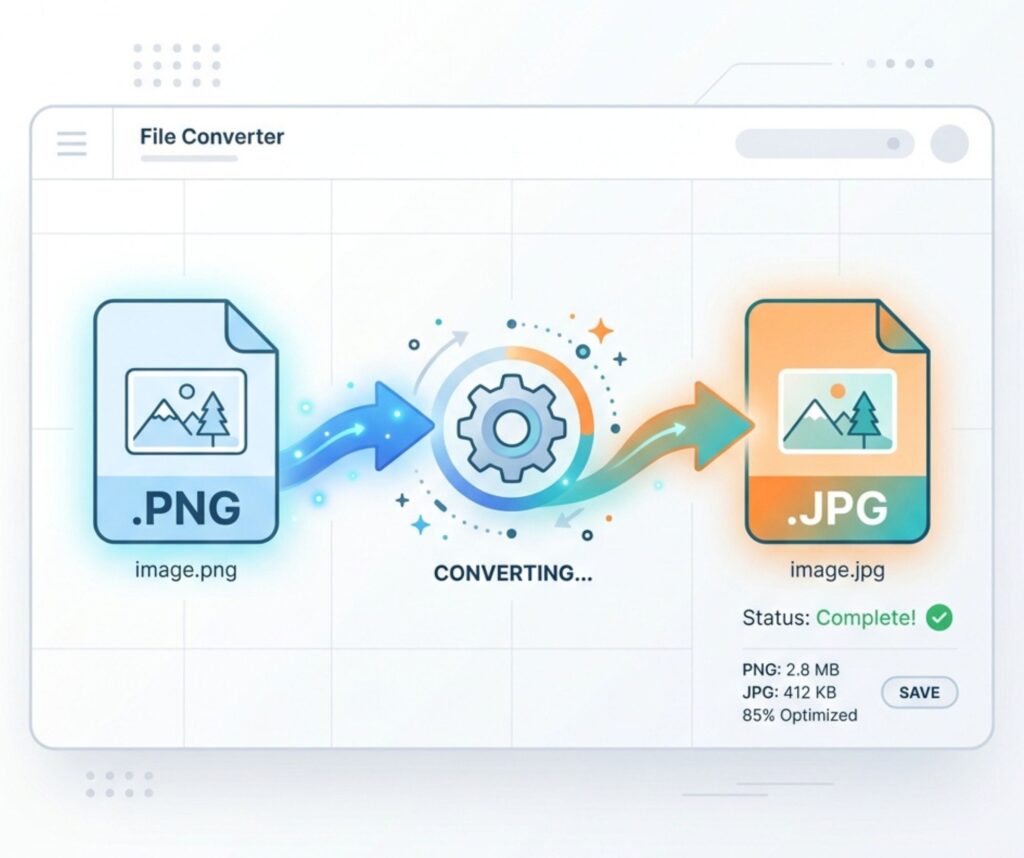
Smartphones dominate internet usage today. Therefore, mobile-friendly tools matter enormously. A modern mobile image converter allows users to transform files directly from Android or iPhone devices within seconds. Mobile conversion eliminates the need for desktop software entirely.
Many users prefer a browser-based image converter because it works instantly through Safari or Chrome. Travelers, students, and social media creators often convert files while commuting or attending events. Fast mobile conversion saves both storage space and mobile data consumption.
Common PNG to JPG Conversion Problems and Their Solutions
Some users encounter blurry images after conversion. This issue usually occurs when compression settings become too aggressive. Choosing moderate quality levels helps maintain visual integrity. A reliable secure image converter also prevents corrupted downloads and data leaks.
White backgrounds sometimes appear unexpectedly when users convert transparent PNG to JPG files. JPG does not support transparency. Therefore, transparent areas automatically convert into white backgrounds. Designers usually add custom background colors before conversion to avoid awkward visual results.
| Common Problem | Simple Solution |
| Blurry Output | Increase Quality Setting |
| White Background | Add Background Color |
| Slow Conversion | Use Faster Tool |
| Corrupted Files | Choose Secure Platforms |
Tips to Reduce JPG File Size After Conversion
Smart compression strategies help users create lightweight images for websites and social media. Many creators use how to convert PNG to JPG tutorials to improve website performance and lower hosting costs. Smaller images reduce bandwidth usage significantly.
A quality-focused best PNG to JPG converter balances compression and sharpness carefully. Resizing oversized images before conversion also improves results. For example, shrinking a 5000-pixel image for blog usage dramatically reduces storage needs without visible quality loss.
Is PNG or JPG Better for Websites, Social Media, and Printing?
The answer depends on your goals. JPG works brilliantly for photography and web publishing. PNG performs better for logos and graphics containing transparent elements. Many marketers prefer JPG because it supports convert PNG images without losing quality workflows effectively.
Website owners also favor JPG because smaller files contribute to image conversion for websites strategies. Faster pages improve SEO rankings and user satisfaction simultaneously. However, professional print designers sometimes retain PNG files when detail precision matters deeply.
| Usage | Recommended Format |
| Photography | JPG |
| Logos | PNG |
| Websites | JPG |
| Transparent Graphics | PNG |
| Social Media | JPG |
Frequently Asked Questions About PNG to JPG Conversion
Can You Convert Multiple PNG Files to JPG at Once?
Yes. Most advanced converters support batch convert PNG files to JPG workflows. Bulk conversion saves time dramatically for businesses and photographers handling large image libraries daily.
Does PNG to JPG Conversion Remove Transparency?
Yes. JPG format removes transparency automatically. Therefore, users performing convert transparent PNG to JPG tasks often replace transparent sections with white or colored backgrounds.
How to Convert PNG to JPG on Windows and Mac
Modern users can easily convert PNG to JPG on Windows using Paint, Photoshop, or browser tools. Mac users commonly convert PNG to JPG on Mac through Preview or online converters.
Are Online PNG to JPG Converters Safe?
Trusted platforms now prioritize secure online image conversion technologies with encrypted uploads and automatic file deletion. Choosing reputable services protects sensitive data effectively.
What Is the Best JPG Quality Setting?
Most experts recommend quality settings between 70% and 90%. This range balances sharp visuals with smaller file sizes. A lightweight JPG image creator often delivers excellent performance within this range.